Eating into open hours and menus, a labor shortage has gobbled up fast-food services employees, but some restaurants are trying out a new staff member to bring back the drive-thru good times: AI. Toronto startup HuEx is in pilot tests with a conversational AI assistant for drive-thrus to help support service at several popular Canadian Read article >
Don’t be fooled by the candy canes, hot cocoa and CEO’s jolly demeanor. Santa’s workshop is the very model of a 21st-century enterprise: pioneering mass customization and perfecting a worldwide distribution system able to meet almost bottomless global demand.
Hi all, I’m running into a problem with a student project.
I’m trying to use the tensorflow pose estimation library to create a script that recognizes different human gestures (specifically, pointing up, pointing left, and pointing right) using Movenet.
I followed the tutorial [ https://www.tensorflow.org/lite/tutorials/pose_classification ] to train my neural network using 3000+ pictures of gestures sourced from fellow students. The testing section of the tutorial shows that the model has a 97% accuracy on the test data subselection.
However the classifications seem to be completely off, not one gesture seems to be recognized. Suspicious of this result, I tried inserting some of the old training videos as input. These also seem to be classified completely wrongly, which leads me to think there is something wrong with my execution of the code.
Has anyone run into a similar problem using the tensorflow pose classification before? Or does anyone have an idea on what I could be doing wrong? I followed all the steps in the tutorials multiple times and am getting a bit hopeles…
The code I use to run the pose classification from the github:
import pose_estimation
pose_estimation.run(
‘movenet_lightning’, # estimation_model: str,
‘keypoint’, # tracker_type: str, # Apparantly not needed when using singlepose
‘gesture_classifier_using_lighting’, # classification_model: str,
‘gesture_labels.txt’, # label_file: str,
‘Kaj7.mp4’, # camera_id: int, #right now set to be an example video used in training
600, # width: int,
600) # height: int
NVIDIA and SoftBank Group Corp. (SBG) today announced the termination of the previously announced transaction whereby NVIDIA would acquire Arm Limited from SBG.
I have looked high and low and I can find no clarity on whether or not it’s even worth getting a CPU with the Intel DL boost instruction set for use in Windows.
All I seem to get is AVX and AVX2 reporting as enabled.
Is my assumption that AVX512 is not supported in Windows correct? Do I just need to build from source?
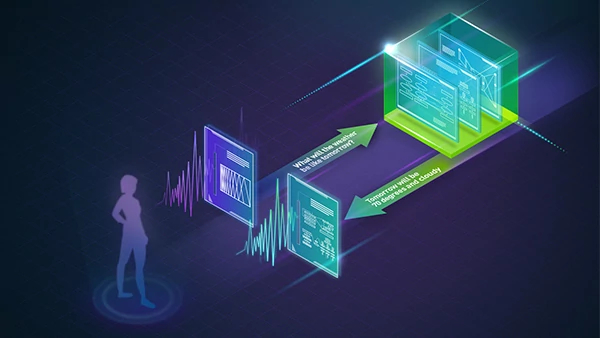
Building an NLP model or AI-powered chatbot? Developers can learn how to create, train and deploy sample models with free NVIDIA DLI courses.
This past year, NVIDIA announced several major breakthroughs in conversational AI for building and deploying automatic speech recognition (ASR), natural language processing (NLP), and text-to-speech (TTS) applications.
To get developers started with some quick examples in a cloud GPU-accelerated environment, NVIDIA Deep Learning Institute (DLI) is offering three fast, free, self-paced courses.
What will you learn?
These instructional DLI courses give developers a taste of how to use modern tools to quickly create conversational AI and NLP GPU-accelerated applications. Learning objectives include:
Use NLP models to transform text, classify text, and classify tokens.
Send text to a TTS model and receive back audio.
Upon course completion, developers will be familiar with:
How to train, infer, and export a text classification model using NVIDIA TAO Toolkit on NVIDIA GPUs.
How to deploy a text classification model using NVIDIA Riva on NVIDIA GPUs.
How to construct requests to an NVIDIA Riva Speech server from a sample client.
Why is text classification useful?
Text classification answers the question: Which category does this bit of text belong in? For example, if you want to know whether a movie review is positive or negative, you can use two categories to build a sentiment analysis project.
Take this one step further, and classify sentences or documents by topic using several categories. In both use cases, you start with a pre-trained language model and then “train” a classifier using example classified text to create our text classification project.
Granted, text classification is just one of many NLP tasks that uses a pre-trained language model to understand written language. Once developers try NVIDIA TAO Toolkit and NVIDIA Riva to train and deploy text classification projects, they will be in a position to extend that experience to additional NLP tasks, such as named entity recognition (NER) and question answering.
How does the NVIDIA Riva Speech API work?
The Riva Speech API server exposes a simple API for performing speech recognition, speech synthesis, and a variety of NLP inferences. In this course, developers use Python examples to run several of these API calls from within a Riva sample client. The server is prepopulated with ASR, NLP, and TTS models. These built-in models allow developers to test several conversational AI components quickly with ease.
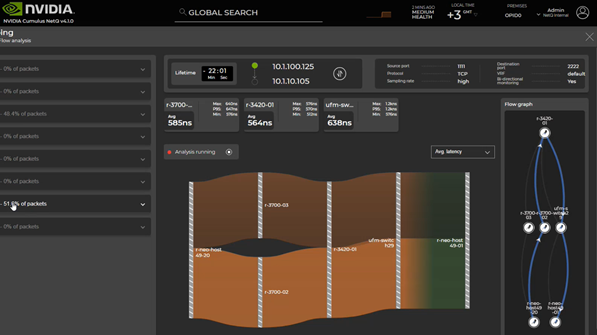
NetQ 4.1.0 introduces fabric-wide network latency and buffer occupancy analysis, along with many other enhancements.
NetQ 4.1.0 was recently released, introducing fabric-wide network latency and buffer occupancy analysis along with many other enhancements. For more information about all the new capabilities, see the NetQ 4.1.0 User Guide.
This post covers the following features:
Flow based fabric-wide latency and buffer occupancy analysis (new)
What Just Happened (WJH) dashboard (new)
Generic webhook notifications (new)
Validation improvements
gNMI streaming enhancements
Fabric-wide latency and buffer occupancy analysis
For the first time, NetQ offers network-wide fabric latency and buffer occupancy analysis by using the live application traffic to troubleshoot network issues impacting application performance. NetQ working with Cumulus Linux samples packets matching 4-tuple and 5-tuple application flow, analyzes, and reports per-switch latency (max, min, avg) and buffer occupancy details along the path of the flow.
The NetQ graphical user interface reports all the possible paths, paths in use, and per-path details (Figure 1). On each switch, you can see minimum latency, maximum latency, and average latency.
WJH is an always-on, full packet inspection, tool-detecting network issues at line rate with respect to packet drops, congestion, and latency issues. Working with WJH, flow telemetry is enabled on-demand for deep analysis and troubleshooting of traffic matching specific flows.
Using these capabilities together, network engineers can proactively identify and root cause server and application issues and inform the server or application administrator about the possible outage or performance impact.
Figure 1. Flow-based telemetry
How does this differ from sFlow?
NetQ flow-based telemetry enables you to select the flow for analysis using 5-tuple or 4-tuple information of the packet, including VXLAN inner or outer headers.
sFlow does not have this level of flexibility and normally monitors at a physical port level. sFlow also provides a specific device attribute without correlating to peer devices in the network and therefore does not have the capability to provide data to build a network topology.
How does this differ from traceroute?
In the case of traceroute, the host generates a packet that runs through the network for collecting the trace data. NetQ flow telemetry analysis uses the actual application packets to build the data of the trace. The data you get from flow-based telemetry includes latency and buffer occupancy provided by the hardware. Traceroute returns ping-level accuracy of the latency, which is much less accurate than hardware-level latency.
How does this differ from in-band flow analysis?
In-band flow analysis is intrusive in nature as each hop adds metadata to the packets in the data plane. This creates network overhead. NetQ flow-based telemetry does not alter the data plane packet structure.
What Just Happened events dashboard
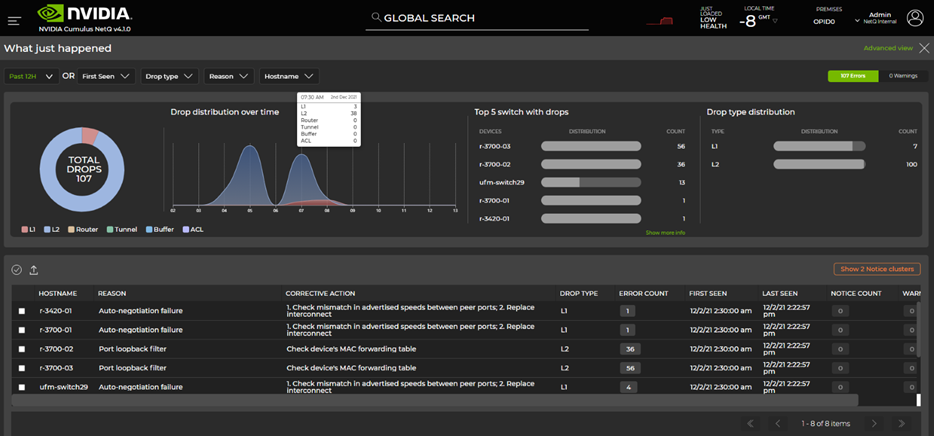
The new What Just Happened (WJH) dashboard introduced with NetQ 4.1 presents a timeline view of WJH events, top switches generating WJH events, top event types, and more. This enables you to quickly absorb insights from WJH Events data collected from all the switches in the fabric. WJH event details can be used to trigger flow telemetry analysis described earlier.
Figure 2. What Just Happened events dashboard
Here’s how to get the most out of WJH: Learn, clean, and personalize.
Learn
Collect WJH events from all switches centrally into NetQ. This enables you to see what is happening in your network with respect to drops, congestion, ACLs, and other protocols. NetQ dashboards are organized by drop category:
L1
L2
Router
Tunnel
Buffer
ACL
Clean
WJH reports issues that inform network, server, and storage admins. Resolve the network issues identified by WJH in priority order.
Personalize
Set WJH filters on NetQ to receive only selected WJH events going forward. For example, you may not want to receive ACL drops until the next revision of ACL updates. This reduces the volume of events to what matters to you.
NetQ also offers flexibility in receiving specific event types or events with a specified severity. NetQ also offers to set up threshold-crossing alerts on WJH events that can be integrated with tools like PagerDuty, Slack, and other notification tools.
Validation enhancements
In the production network, NetQ validations provide insight into the live state of the network and help with proactive monitoring and troubleshooting. As part of NetQ 4.1.0, validation checks are re-architected, resulting in significant performance improvements.
Hourly network validation checks can be enabled or disabled depending on protocols running in your data center fabric.
Global validation check filters applied to hourly network validation checks with NetQ 4.1.0 enable network admins to establish a clean network validation state matching what’s running in the network.
When this baseline is established, it is easy to detect any deviations using NetQ.
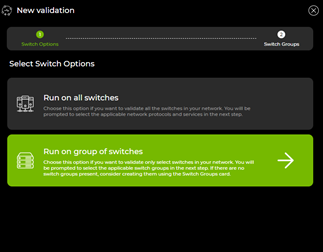
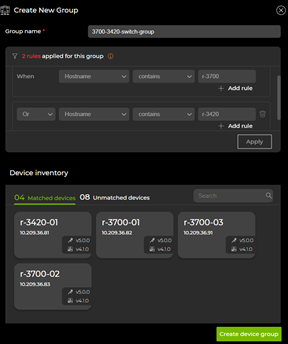
In NetQ 4.1, a grouping concept has been added to create multiple validation scopes within a site. Using this, customers with multiple fabrics in a single site can run per-fabric on-demand and scheduled validations.
Figure 3. NetQ validation checks
Figure 4. Validation device groups
gNMI streaming enhancements
NetQ 4.1.0 supports gNMI, the gRPC network management interface, to collect WJH data from the NetQ Agent on SONiC in addition to Cumulus Linux. For Cumulus Linux switches, system resource and interface counters can be streamed using gNMI. YANG Model details are available in the User Guide.
Generic webhook notification support
NetQ 4.1.0 introduced support for generic webhook notifications in addition to email, syslog, PagerDuty, and Slack event notification distribution options. Generic webhook enables NetQ to integrate with custom applications using event payload information in JSON format.
Summary
In this post, you’ve seen an overview of the new capabilities available with NetQ 4.1.0. You can further explore NetQ 4.1.0 using NVIDIA Air. For more information, see Troubleshooting Networks with NetQ.
This month, NVIDIA Riva released world-class speech-to-text in Spanish, German, and Russian, empowering enterprises to deploy speech AI applications globally.
This month, NVIDIA released world-class speech-to-text models for Spanish, German, and Russian in Riva, powering enterprises to deploy speech AI applications globally. In addition, enterprises can now create expressive speech interfaces using Riva’s customizable text-to-speech pipeline.
NVIDIA Riva is a GPU-accelerated speech AI SDK for developing real-time applications like live captioning, adding voice to text-based chatbots, and generating real-time transcription in call centers. For easy implementation, Riva offers highly accurate pretrained models in the NGC catalog.
With the TAO Toolkit, these models can be customized for any industry including telecommunications, finance, unified communications as a service, and healthcare. Developers can use Riva to deploy these models out-of-the-box. They are optimized to run in real time in less than 300 ms in the cloud, data center, and at the edge.
Riva release highlights include
World-class speech recognition skills in Spanish, German, and Russian.
Customizable text-to-speech pipeline for expressive interactions.
Low-code fine-tuning workflow with TAO Toolkit.
Automatic speech recognition in multiple languages
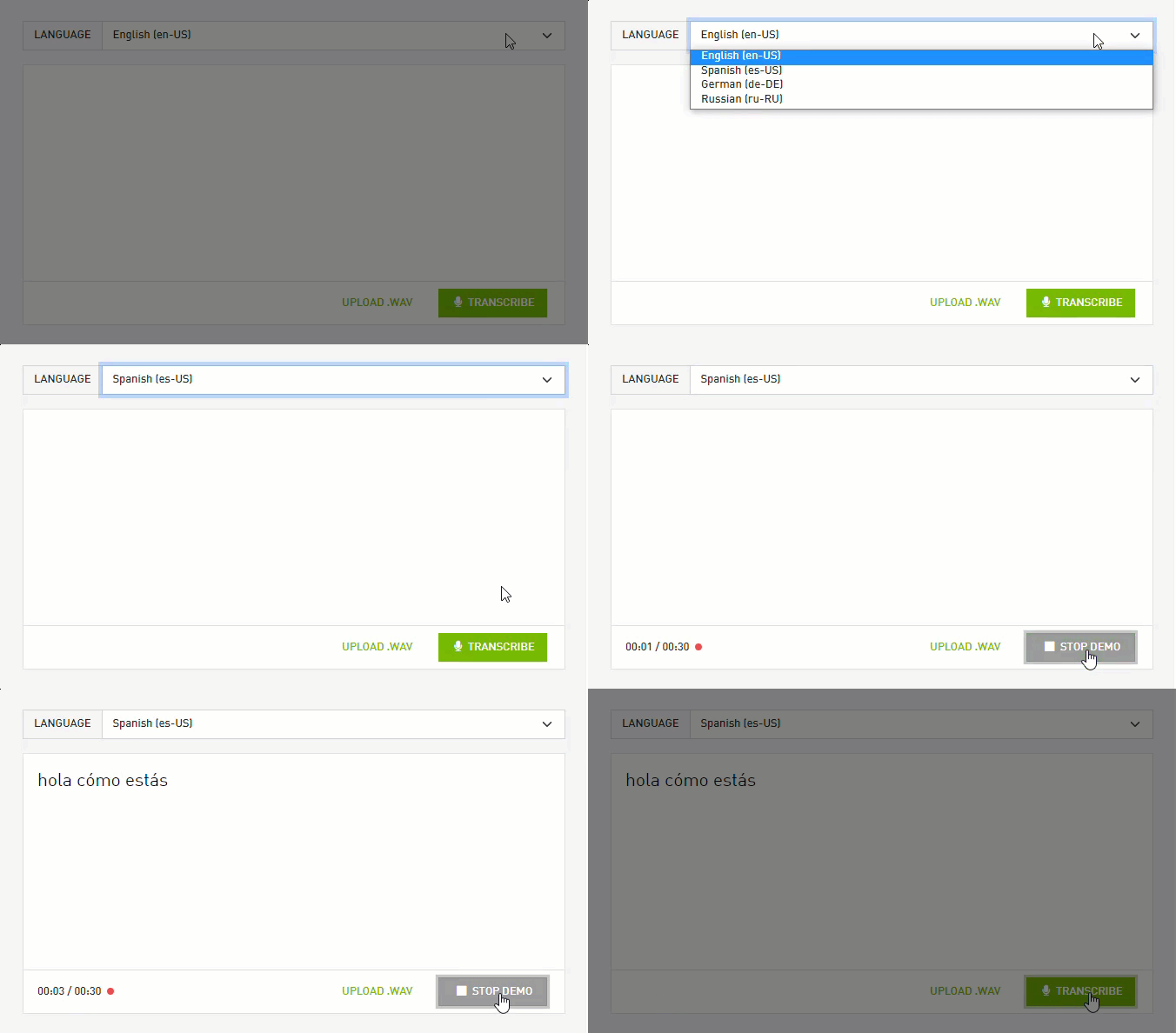
Every conversational AI application, from call centers to virtual assistants, relies heavily on automatic speech recognition. Enterprises can extend these apps globally with Riva automatic speech recognition in English, Spanish, German, and Russian.
Figure 1: NVIDIA Riva world-class automatic speech recognition is available in English, Spanish, German, and Russian.
The non-English automatic speech recognition models are trained on a variety of open-source datasets, such as Mozilla Common Voice, as well as private datasets. Riva automatic speech recognition models are developed to provide out-of-the-box accuracy and serve as a great starting point for adapting to industry, jargon, dialect, or even noisy surroundings. On popular evaluation datasets, these models deliver world-class accuracy on several industry applications.
Customizable text-to-speech pipelines
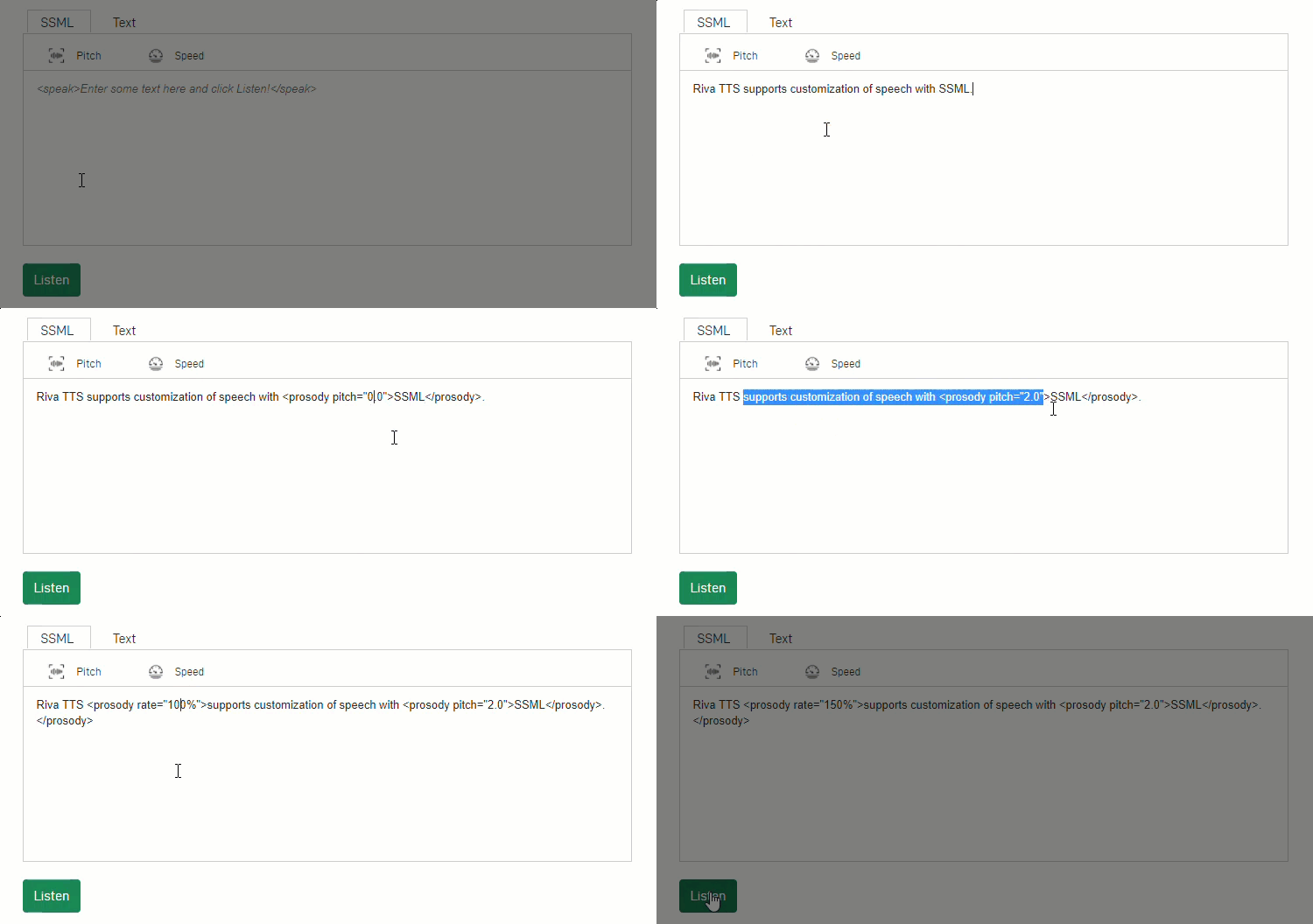
For customers to enjoy lifelike dialogues, speech applications must offer human-like expressions. Using Fastpitch, a new model created by the NVIDIA speech AI research team, Riva helps developers customize the text-to-speech pipeline and create expressive speech interfaces. For example, during inference time, developers can vary voice pitch and speed using SSML tags.
Figure 2: NVIDIA Riva provides customizable text-to-speech pipelines for more expressive interactions.
The latest state-of-the-art models, such as Fastpitch in Riva, help text-to-speech pipelines run several times faster than other competing options in the market.
This is a weird question but I work for a company that sets up HPC clusters and we just finished setting up a cluster that is going to be used for machine learning and video analytics. We would like to test this cluster using a ML job (including training I guess?) that uses a decent enough amount of resources (not too small scale) in order to make sure that everything is working. However, I can’t seem to find what I am looking for online, or maybe I am looking in the wrong places.
Can anyone help or point me in the right direction? I am looking for a job that uses multiple GPUs.
Basically the title. I need some sort of guidance here because I have never worked with TensorFlow and I am still not quite sure if TensorFlow and Sklearn can be used in tandem or they are completely independent and can’t be used together.

 Building an NLP model or AI-powered chatbot? Developers can learn how to create, train and deploy sample models with free NVIDIA DLI courses.
 NetQ 4.1.0 introduces fabric-wide network latency and buffer occupancy analysis, along with many other enhancements.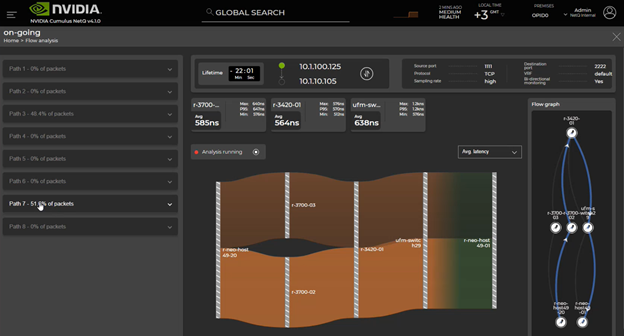
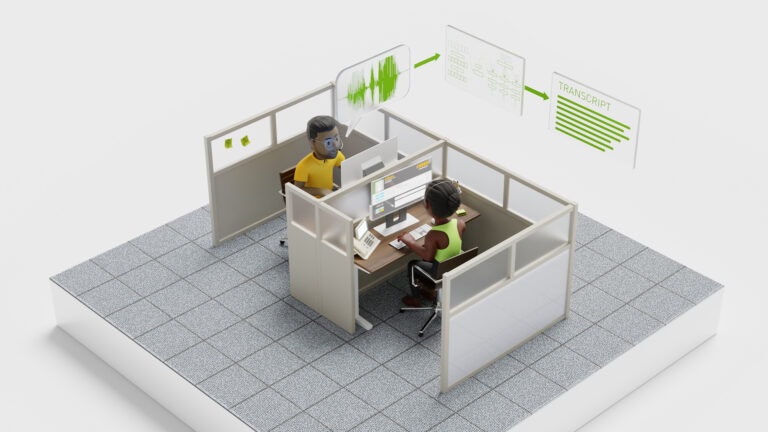 This month, NVIDIA Riva released world-class speech-to-text in Spanish, German, and Russian, empowering enterprises to deploy speech AI applications globally.