Unreal Engine 5 (UE5) is available in Early Access, delivering the next-generation engine from Epic Games that will further propel the industry forward.
NVIDIA RTX, Unreal Engine 5 Define Future of Game Development and Content Creation
Today, Unreal Engine 5 (UE5) is available in Early Access, delivering the next-generation engine from Epic Games that will further propel the industry forward.
Unreal Engine is used by more than 11 million creators, making it one of the most popular game engines in the world, and one that continuously pushes the boundaries of what’s possible with real-time technology. UE5 represents a generational leap in both workflows and visual fidelity, extending the engine’s support for DirectX Raytracing, NVIDIA DLSS, and NVIDIA Reflex, and adding new features such as Nanite and Lumen that make it faster and easier for games to implement photorealistic visuals, large open worlds and advanced animation and physics.
In 2018, NVIDIA launched our RTX technology alongside a stunning Star Wars demo called Reflections, which was built on Epic Games’ Unreal Engine 4. This laid out a vision of a new era of computer graphics for video games that featured photorealistic, ray-traced lighting, AI-powered effects and complex worlds with massive amounts of geometry and high-resolution textures.
Enabling this vision were RTX GPUs with dedicated cores for ray tracing and AI, as well as new hardware capabilities for increased geometric detail and texture streaming. The RTX games that have been released over the last three years, including Fortnite, Metro Exodus and Cyberpunk 2077, have stepped us closer to this vision.
Dynamic Open Worlds Full of Geometric Detail
With the introduction of Nanite and Lumen in UE5, developers can create games that contain massive amounts of geometric detail with fully dynamic global illumination.
Nanite enables film-quality source art consisting of millions or billions of polygons to be directly imported into Unreal Engine — all while maintaining a real-time frame rate and without sacrificing fidelity. Nanite intelligently streams and processes only the detail you can perceive, largely removing poly count and draw call constraints, and eliminating time-consuming work like baking details to normal maps and manually authoring levels of detail. This allows users to focus less on tedious tasks and more on creativity.
With Lumen, developers can create more dynamic scenes where indirect lighting adapts on the fly, such as changing the sun angle with the time of day, turning on a flashlight or opening an exterior door. Lumen removes the need for authoring lightmap UVs, waiting for lightmaps to bake or placing reflection captures, which results in crucial time savings in the development process.
UE5 is making it easier to develop expansive open worlds and provides developers with the GPU-accelerated tools to better animate characters and build audio pipelines.
“We’ve utilized RTX GPUs extensively throughout the development of Unreal Engine 5 and all of the respective sample content released today,” said Nick Penwarden, Vice President of Engineering at Epic Games. “Thanks to a tight integration with NVIDIA’s tools and technologies our team is able to more easily optimize and stabilize UE5 for everyone.”
DLSS taps into the power of a deep learning neural network to boost frame rates and generate beautiful, sharp images. Reflex aligns CPU work to complete just in time for the GPU to start processing, minimizing latency and improving system responsiveness.
DLSS source code and NVIDIA Reflex is available now in Unreal Engine 5, and we will be releasing the DLSS plugin for UE5 in the coming weeks.
Get more information about NVIDIA Reflex and its impact in competitive games by watching this on-demand GTC session.
Take Unreal Engine 5 for a Test Drive on RTX GPUs Today
Developers can download Unreal Engine 5 Early Access from Epic Games here. Grab an NVIDIA RTX GPU and install the latest NVIDIA graphics driver on your system for the best experience.
With the processing power of RTX GPUs and the next-generation Unreal Engine 5, there’s no limit to what you can create.
I’ve been trying to start the mit deep learning lab1. I know it comes with the notebook you can run in google colab, but I’d like to be able to play with this locally and hopefully experiment easier. I had a ton of problems getting this to work, but I finally did it. Here are some notes.
Install python 3.8 from the python website not from windows app marketplace. I was finding that the windows app one seems to be sandboxed and cannot fully find stuff in PATH.
I grabbed tensorflow nightly as I could not get the default to work at this time.
I used cuda 11.0 update 2. (This is the one I have working other cuda 11s might work). This was ” cuda_11.0.3_451.82_win10.exe ”
I used cuDNN ” cudnn-11.0-windows-x64-v8.0.4.30.zip ” use ” cudnn-11.2-windows-x64-v8.1.0.77.zip ” now. Had a version error later during running a NN but not during install.
nVidia cuDNN check that path is to do the bin folder. Settings -> System -> About -> Advanced System Settings. Advanced tab -> Environment variables.To compare my PATH looks like:C:toolscudabin (this should be the only one you need to manually add)C:Program FilesNVIDIA GPU Computing ToolkitCUDAv11.0binC:Program FilesNVIDIA GPU Computing ToolkitCUDAv11.0extrasCUPTIlib64C:Program FilesNVIDIA GPU Computing ToolkitCUDAv11.0includeC:Program FilesNVIDIA GPU Computing ToolkitCUDAv11.0libnvvpC:Program FilesNVIDIA CorporationNsight Compute 2020.1.2
If you do all of this it still wont work, but pay attention to the errors! there is a dll in C:Program FilesNVIDIA GPU Computing ToolkitCUDAv11.0bin that it cannot find.
This dll is infact xyz_10.dll in the folder but python wants to grab xyz_11.dll. I renamed this to _11.dll and all works. Note xyz is some random name as I for get the exact file name now, but there was only one.
Also I am running this on a non AVX supported cpu (X58 era W3690) with at GTX 1060 6GB. Hope this helps I found a lot of similar posts in various sites with abandonment or no answers and almost gave up. Reposted this as I forgot to join before submitting and this was marked as spam.
I will get the warning W tensorflow/core/kernels/data/ge nerator_dataset_op.cc:103] Error occurred when finalizing GeneratorDataset iterator: Cancelled: Operation was cancelled.
“`python import numpy as np import tensorflow as tf from tensorflow import keras
Network and training parameters
EPOCHS = 200 BATCH_SIZE = 128 VERBOSE = 1 CLASSES_NUM = 10 # Number of outputs = number of digits VALIDATION_SPLIT=0.2 # How much TRAIN is reserved for VALIDATION
class DataGenerator: def init(self, x, y, classes_num, batch_size=32, shuffle=True): ‘Initialization’ self.x = x self.y = y
self.batch_size = batch_size self.classes_num = classes_num self.shuffle = shuffle self.steps = int(np.floor(len(self.x) / self.batch_size)) def __iter__(self): indexes = np.arange(len(self.x)) if self.shuffle == True: np.random.shuffle(indexes) for start in range(0, len(self.x), self.batch_size): end = min(start + self.batch_size, len(self.x)) idxes = indexes[start:end] batch_x = [self.x[idx] for idx in idxes] batch_y = [self.y[idx] for idx in idxes] yield np.array(batch_x), tf.keras.utils.to_categorical(batch_y, num_classes=self.classes_num) def data_generator(self): while True: yield from self.__iter__()
At GTC ’21, experts presented a variety of technical talks to help people new to AI, or those just looking for tools to speed-up their AI development using the various components of NGC.
At GTC ’21, experts presented a variety of technical talks to help people new to AI, or just those looking for tools to speed-up their AI development using the various components of the NGC catalog, including:
AI containers optimized to speed up AI/ML training and inference
Pretrained models that provide an advanced starting point to build custom models
Industry-specific AI SDKs that transform applications into AI-powered ones
Helm charts to provide consistent and faster deployments
Collections that bring together all the software needed for various use cases
Watch these on-demand sessions to learn how to build solutions in the cloud with NVIDIA AI software from NGC.
This session shows how to build a TTS model for expressive speech using pretrained models. The model is fine-tuned with speech samples and customized for the variability in speech performing style transfer from other speakers. The provided tools let developers create a model for their voice and style and make the TTS service sound like them!
This session demonstrates how to use the Transfer Learning Toolkit and pretrained models to build computer vision models and run inference on over 1,000 live video feeds on a single AWS instance powered by NVIDIA A100 GPUs.
This session shows how to building a taxi fare prediction application using RAPIDS and shows how to automatically set up a DASK cluster with multiple Azure virtual machines to support large datasets, mount data into the Dask scheduler and workers, deploy GPU-optimized AI software from the NGC catalog to train models, and then make taxi fare predictions.
This session demonstrates the basics of Azure Machine Learning (AzureML) Platform, the benefits of using the NGC catalog, and how to leverage the NGC-AzureML Quick Launch Toolkit to build an end-to-end AI application in AzureML.
If you’re building an AI solution from scratch or just want to replicate the use cases shown in the above sessions, start with the NGC catalog.
Save time and produce a more accurate result when processing audio data with automated speech recognition (ASR) models from NVIDIA NeMo and Label Studio.
You can save time and produce a more accurate result when processing audio data with automated speech recognition (ASR) models from NVIDIA NeMo and Label Studio.
NVIDIANeMo provides reusable neural modules that make it easy to create new neural network architectures, including prebuilt modules and ready-to-use models for ASR. With the power of NVIDIA NeMo, you can get audio transcriptions from the pretrained speech recognition models. Add Label Studio and its open-source data labeling capabilities to the mix and you can improve the transcription quality even further.
Solution
Figure 1. ASR workflow with Label Studio and NeMo to annotate and correct transcripts.
Follow the steps in this post to set up NVIDIA NeMo ASR with Label Studio to produce high-quality audio transcripts.
Connect the NVIDIA NeMo model to transcribe audio files in Label Studio automatically.
Set up the audio transcription project.
Validate and export revised audio transcripts from Label Studio.
Fine-tune a NeMo ASR model with the revised audio transcripts from Label Studio.
Prerequisites
Before you start, make sure that you have the following resources:
Audio data files. This audio might be recordings of customer service calls, phone orders, sales conversations, or other recorded audio with people talking. The audio files must be in one of the following file formats:
WAV
AIFF
MP3
AU
FLAC
Label Studio installed. Install Label Studio using your preferred method on your local machine or a cloud server. For more information, see Quickstart in the Label Studio documentation.
NeMo toolkit installed
Free audio data
If you don’t have any audio data in mind, you can use an example dataset or a historical audio dataset:
The LJ Speech Dataset is a public domain dataset of passages from nonfiction books.
cd label-studio-ml-backend

# Install label-studio-ml and its dependencies
pip install -U -e .

# Install the nemo example dependencies
pip install -r label_studio_ml/examples/requirements.txt
Connect the NVIDIA NeMo model to transcribe audio files in Label Studio automatically
To prelabel the data with predictions from a pretrained ASR model, set up the NeMo toolkit as a machine learning backend in Label Studio. The Label Studio machine learning backend lets you use a pretrained model to prelabel your data.
Download a NeMo ASR model. The provided Label Studio example script downloads the pretrained QuartzNet model from the NGC cloud. To use a different model, download that model from NGC.
From the command line, start the Label Studio machine learning backend. label-studio-ml init my_model --from label_studio_ml/examples/nemo/asr.py
Start the machine learning backend. By default, the model starts on localhost with port 9090. label-studio-ml start my_model
Start Label Studio with the model. label-studio start my_project --ml-backends http://localhost:9090
Set up the audio transcription project
After you start Label Studio, import your audio data and set up the right template to configure labeling. The audio transcription template is the best one for automated speech recognition and makes it easy to annotate the audio data.
Open Label Studio, import your data, and select the template.
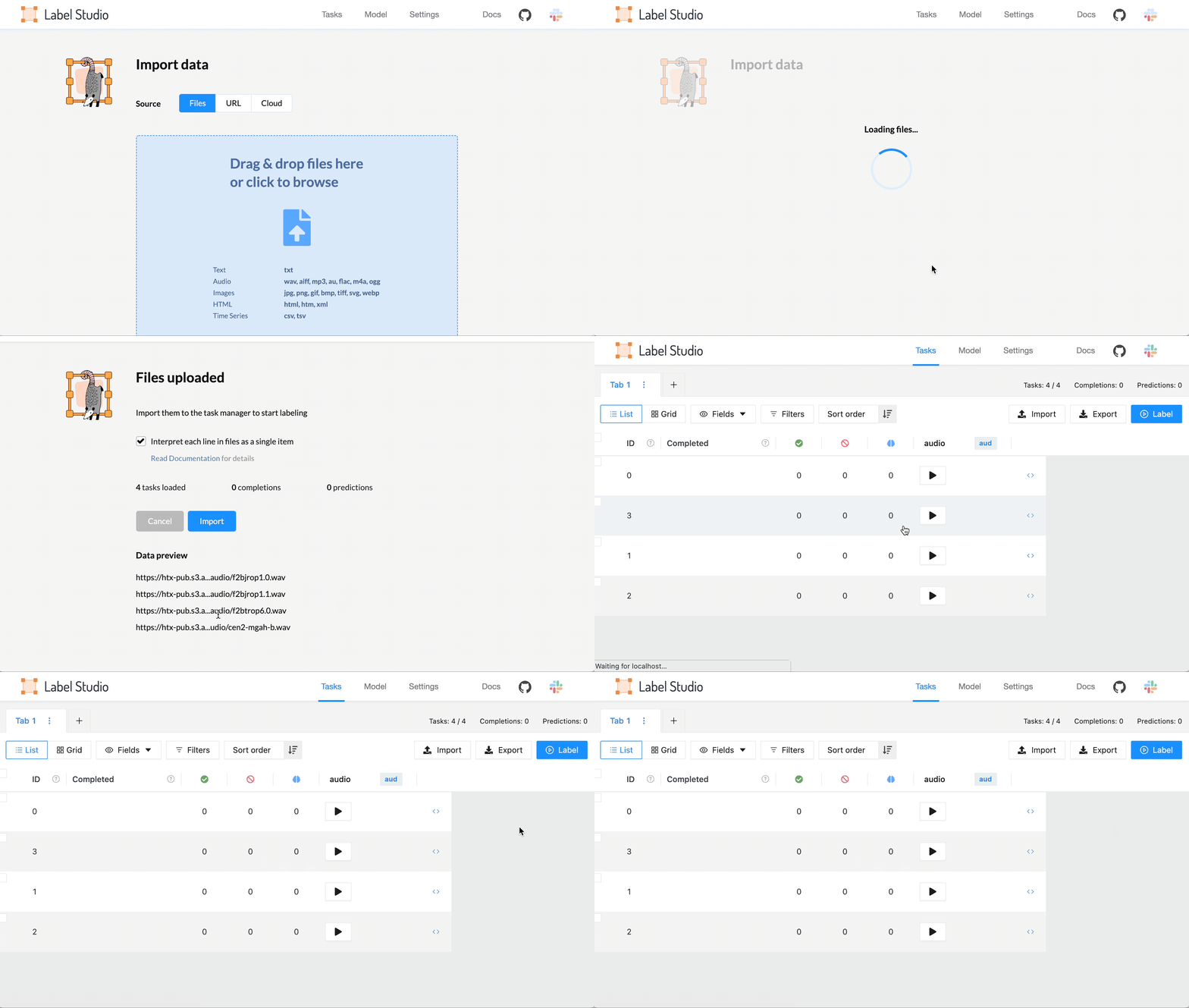
Choose Import and import your audio data as plain text or JSON files referencing valid URLs for the audio files hosted in online storage such as Amazon S3. For more information, see Get data into Label Studio.
Figure 2. process of importing data into Label Studio..
2. From the Tasks list, choose Settings. 3. On the Labeling Interface tab, browse the templates and select the Automated Speech Recognition template. 4. Choose Save.
Validate and output the model predictions
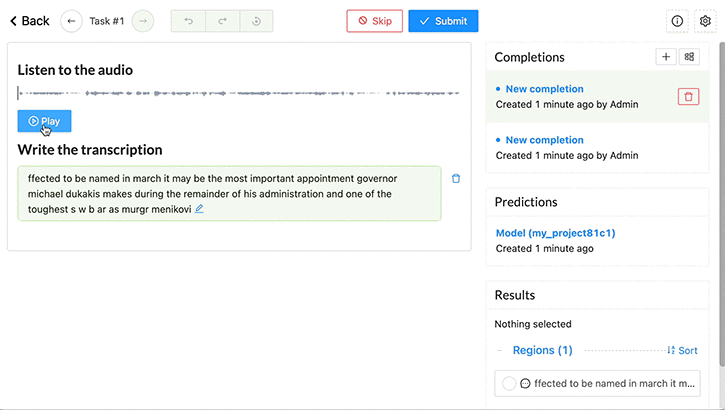
As an annotator, review the tasks for the audio data on the task interface and validate. If necessary, correct the transcript predicted by the NeMo speech model.
From the list of tasks in Label Studio, choose Label.
For each audio sample, listen to the audio and review the transcription produced by the NeMo model as part of the prelabeling process.
If any words in the transcript are incorrect, update them.
Save the changes to the transcript. Choose Submit to submit the transcript and review the next audio sample.
Next, export the completed audio transcripts from Label Studio in the proper format expected by the NeMo model, as described in NeMo ASR collection in the NVIDIA NeMo documentation.
To export the completed audio, do the following:
From the list of tasks in Label Studio, choose Export.
Select the audio transcript JSON format called ASR_MANIFEST.
Use high-quality transcripts to fine-tune your ML model
When you’re done processing the audio and adjusting the transcribed text, you’re left with audio transcripts that you can use to retrain the ASR models included in NeMo. Label Studio produces annotations that are fully compatible with NeMo training.
To update the QuartzNet model checkpoint, you can do it in a few lines of code, train the model from scratch, or use PyTorch Lightning. Examples are also available in the NeMo Jupyter notebook. For more information, see Transfer Learning in the ASR with NeMo Jupyter notebook.
By using Label Studio and NeMo together, you can save time processing each audio file from scratch. NeMo gives you a highly accurate prediction right away, and Label Studio helps make that prediction perfect. Try it today!
Path-breaking work that translates an amputee’s thoughts into finger motions, and even commands in video games, holds open the possibility of humans controlling just about anything digital with their minds. Using GPUs, a group of researchers trained an AI neural decoder able to run on a compact, power-efficient NVIDIA Jetson Nano system on module (SOM) Read article >
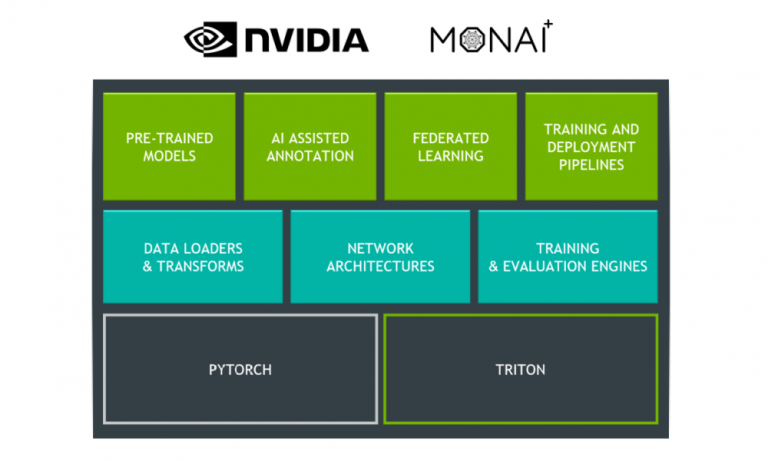
NVIDIA recently released Clara Train 4.0, an application framework for medical imaging that includes pre-trained models, AI-Assisted Annotation, AutoML, and Federated Learning. In this 4.0 release, there are three new features to help get you started training quicker.
NVIDIA recently released Clara Train 4.0, an application framework for medical imaging that includes pre-trained models, AI-Assisted Annotation, AutoML, and Federated Learning. In this 4.0 release, there are three new features to help get you started training quicker.
Clara Train has upgraded its underlying infrastructure from TensorFlow to MONAI. MONAI is an open-source, PyTorch-based framework that provides domain-optimized foundational capabilities for healthcare. By leveraging MONAI, users now have access to a comprehensive list of medical image–specific transformations and reference networks. Clara Train has also updated its DeepGrow model to work on 3D CT images. This updated model gives you the ability to segment an organ in 3D with only a few clicks across the organ.
Expanding into Digital Pathology, Clara Train helps users navigate these new workloads by providing a Digital Pathology pipeline that includes data loading and training optimizations. These data loading optimizations involve using the new cuCIM library included in RAPIDS.
Clara Train 4.0 continues to improve on its Federated Learning framework by adding homomorphic encryption tools. Homomorphic encryption allows you to compute data while the data is still encrypted. It can play an important role in healthcare in ensuring that patient data stays secure at each hospital while still benefiting from using federated learning with other institutions.
To learn more about these new features, check out our Clara Train 4.0 features highlight video below or the latest blog posts which includes a walkthrough of how you can Bring-Your-Own-Components to Clara Train.
Download Clara Train 4.0 from NGC, and try out the newly updated Jupyter notebooks on GitHub.
This is the third installment in a series describing an end-to-end blueprint for predicting customer churn. In previous installments, we’ve discussed some of the challenges of machine learning systems that don’t appear until you get to production: in the first installment, we introduced our use case and described an accelerated data federation pipeline; in the … Continued
This is the third installment in a series describing an end-to-end blueprint for predicting customer churn. In previous installments, we’ve discussed some of the challenges of machine learning systems that don’t appear until you get to production: in the first installment, we introduced our use case and described an accelerated data federation pipeline; in the second installment, we showed how advanced analytics fits with the rest of the machine learning lifecycle.
In this third installment, we finish presenting the analytics and federation components of our application and explain some best practices for getting the most out of Apache Spark and the RAPIDS Accelerator for Apache Spark.
Architecture review
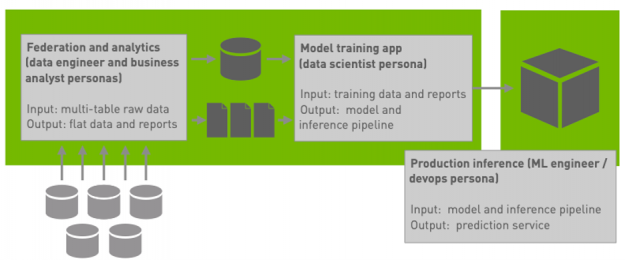
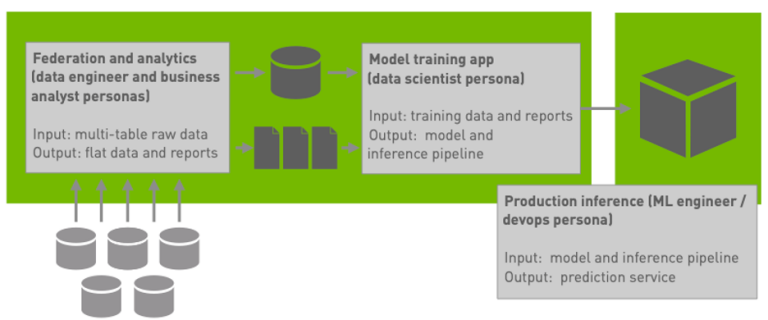
Figure 1: A high-level overview of our blueprint architecture.
Recall that our blueprint application (Figure 1) includes a federation workload and a pair of analytics workloads.
The federation workload produces a single denormalized wide table of data about each customer drawn from aggregating data spread across five normalized tables of observations related to different aspects of customers’ accounts.
The first analytic workload produces a machine-readable summary report of value distributions and domains for each feature.
The second analytic workload produces a series of illustrative business reports about customer outcomes. Our first installment contains additional details about the federation workload and our second installment contains additional details about the analytics workloads.
We’ve implemented these three workloads as a single Spark application with multiple phases:
The app federates raw data from multiple tables in HDFS (which are stored as Parquet files) into a single wide table.
Because the wide table is substantially smaller than the raw data, the app then reformats the wide output by coalescing to fewer partitions and casting numeric values to types that will be suitable for ML model training. The output of this phase is the source data for ML model training.
The app then runs the analytics workloads against the coalesced and transformed wide table, first producing the machine-readable summary report and then producing a collection of rollup and data cube reports.
Performance considerations
Parallel execution
For over 50 years, one of the most important considerations for high performance in computer systems has been increasing the applicability of parallel execution. (We choose, somewhat arbitrarily, to identify the development of Tomasulo’s algorithm in 1967, which set the stage for ubiquitous superscalar processing, as the point at which concerns about parallelism became practical and not merely theoretical.) In the daily work of analysts, data scientists, data and ML engineers, and application developers, concerns about parallelism often manifest in one of a few ways; we’ll look at those now.
When scaling out, perform work on a cluster
If you’re using a scale-out framework, perform work on a cluster instead of on a single node whenever possible. In the case of Spark, this means executing code in Spark jobs on executors rather than in serial code on the driver. In general, using Spark’s API rather than host-language code in the driver will get you most of the way there, but you’ll want to ensure that the Spark APIs you’re using are actually executing in parallel on executors.
Operate on collections, not elements; on columns, not rows
A general best practice to exploit parallelism and improve performance is to use specialized libraries that perform operations on a collection at a time rather than an element at a time. In the case of Spark, this means using data frames and columnar operations rather than iterating over records in partitions of RDDs; in the case of the Python data ecosystem and RAPIDS.ai, it means using vectorized operations that operate on entire arrays and matrices in a single library call rather than using explicit looping in Python. Crucially, both of these approaches are also amenable to GPU acceleration.
Amortize the cost of I/O and data loading
I/O and data loading are expensive, so it makes sense to amortize their cost across as many parallel operations as possible. We can improve performance both by directly reducing the cost of data transfers and by doing as much as possible with data once it is loaded. In Spark, this means using columnar formats, filtering relations only once upon import from stable storage, and performing as much work as possible between I/O or shuffle operations.
Better performance through abstraction
In general, raising the level of abstraction that analysts and developers employ in apps, queries, and reports allows runtimes and frameworks to find opportunities for parallel execution that developers didn’t (or couldn’t) anticipate.
Use Spark’s data frames
As an example, there are many benefits to using data frames in Spark and primarily developing against the high-level data frame API, including faster execution, semantics-preserving optimization of queries, reduced demand on storage and I/O, and dramatically improved memory footprint relative to using RDD based code. But beyond even these benefits lies a deeper advantage: because the data frame interface is high-level and because Spark allows plug-ins to alter the behavior of the query optimizer, it is possible for the RAPIDS Accelerator for Apache Spark to replace certain data frame operations with equivalent — but substantially faster — operations running on the GPU.
Transparently accelerate Spark queries
Replacing some of the functionality of Spark’s query planner with a plug-in is a particularly compelling example of the power of abstraction: an application written years before it was possible to run Spark queries on GPUs could nevertheless take advantage of GPU acceleration by running it with Spark 3.1 and the RAPIDS Accelerator.
Maintain clear abstractions
While the potential to accelerate unmodified applications with new runtimes is a major advantage of developing against high-level abstractions, in practice, maintaining clear abstractions is rarely a higher priority for development teams than shipping working projects on time. For multiple reasons, details underlying abstractions often leak into production code; while this can introduce technical debt and have myriad engineering consequences, it can also limit the applicability of advanced runtimes to optimize programs that use abstractions cleanly.
Consider operations suitable for GPU acceleration
In order to get the most out of Spark in general, it makes sense to pay down technical debt in applications that work around Spark’s data frame abstraction (e.g., by implementing parts of queries as RDD operations). In order to make the most of advanced infrastructure, though, it often makes sense to consider details about the execution environment without breaking abstractions. To get the best possible performance from NVIDIA GPUs and the RAPIDS Accelerator for Apache Spark, start by ensuring that your code doesn’t work around abstractions, but then consider the types and operations that are more or less amenable to GPU execution so you can ensure that as much of your applications run on the GPU as possible. We’ll see some examples of these next.
Types and operations
Not every operation can be accelerated by the GPU. When in doubt, it always makes sense to run your job with spark.rapids.sql.explain set to NOT_ON_GPU and examine the explanations logged to standard output. In this section, we’ll call out a few common pitfalls, including decimal arithmetic and operations that require configuration for support.
Beware of decimal arithmetic
Decimal computer arithmetic supports precise operations up to a given precision limit, can avoid and detect overflow, and rounds numbers as humans would while performing pencil-and-paper calculations. While decimal arithmetic is an important part of many data processing systems (especially for financial data), it presents a particular challenge for analytics systems. In order to avoid overflow, the results of decimal operations must widen to include every possible result; in cases in which the result would be wider than a system-specific limit, the system must detect overflow. In the case of Spark on CPUs, this involves delegating operations to the BigDecimal class in the Java standard library and precision is limited to 38 decimal digits, or 128 bits. The RAPIDS Accelerator for Apache Spark can currently accelerate calculations on decimal values of up to 18 digits, or 64 bits.
We’ve evaluated two configurations of the churn blueprint: one using floating-point values for currency amounts (as we described in the first installment) and one using decimal values for currency amounts (which is the configuration that the performance numbers we’re currently reporting is running against). Because of its semantics and robustness, decimal arithmetic is more costly than floating-point arithmetic, but it can be accelerated by the RAPIDS Accelerator plugin as long as all of the decimal types involved fit within 64 bits.
Configure the RAPIDS Accelerator to enable more operations
The RAPIDS Accelerator is conservative about executing operations on the GPU that might exhibit poor performance or return slightly different results than their CPU-based counterparts. As a consequence, some operations that could be accelerated may not be accelerated by default, and many real-world applications will need to enable these to see the best possible performance. We saw an example of this phenomenon in our first installment, in which we had to explicitly enable floating-point aggregate operations in our Spark configuration by setting spark.rapids.sql.variableFloatAgg.enabled to true. Similarly, when we configured the workload to use decimal arithmetic, we needed to enable decimal acceleration by setting spark.rapids.sql.decimalType.enabled to true.
The plugin documentation lists operations that can be supported or not by configuration and the reasons why certain operations are enabled or disabled by default. In addition to floating-point aggregation and decimal support, there are several classes of operations that production Spark workloads are extremely likely to benefit from enabling:
Cast operations, especially from string to date or numeric types or from floating-point types to decimal types.
String uppercase and lowercase (e.g., “SELECT UPPER(name) FROM EMPLOYEES“) are not supported for some Unicode characters in which changing the case also changes the character width in bytes, but many applications do not use such characters. You can enable these operations individually or enable them and several others by setting spark.rapids.sql.incompatibleOps.enabled to true.
Reading specific types from CSV files; while reading CSV files is currently enabled by default in the plugin (spark.rapids.sql.format.csv.enabled), reading invalid values of some types (numeric types, dates, and decimals in particular) will have different behavior on the GPU and the CPU and thus reading each of these will need to be enabled individually.
Accelerate data ingest from CSV files
CSV reading warrants additional attention: it is expensive and accelerating it can improve the performance of many jobs. However, because the behavior of CSV reading under the RAPIDS Accelerator may diverge from Spark’s behavior while executing on CPUs and because of the huge dynamic range of real-world CSV file quality, it is particularly important to validate the results of reading CSV files on the GPU. One quick but valuable sanity check is to ensure that reading a CSV file on the GPU returns the same number of NULL values as reading the same file on the CPU. Of course, there are many benefits to using a self-documenting structured input format like Parquet or ORC instead of CSV if possible.
Avoid unintended consequences of query optimization
The RAPIDS Accelerator transforms a physical query plan to delegate certain operators to the GPU. By the time Spark has generated a physical plan, though, it has already performed several transformations on the logical plan, which may involve reordering operations. As a consequence, an operation near the end of a query or data frame operation as it was stated by the developer or analyst may get moved from a leaf of the query plan towards the root.
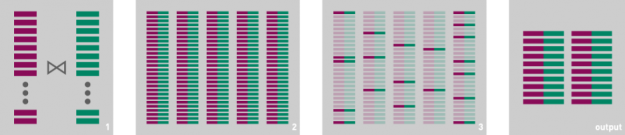
Figure 2: A depiction of executing a data frame query that joins two data frames and then filters the results. If the predicate is sufficiently selective, most of the output tuples will be discarded.
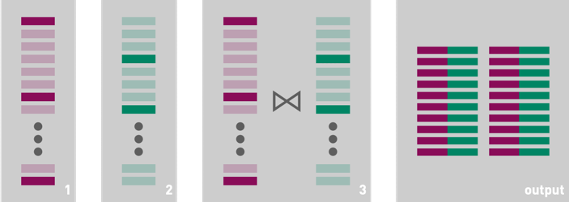
Figure 3: A depiction of executing a data frame query that filters two input relations before joining the results. If the predicate can be evaluated on each input relation independently, this query execution produces the same results as the query execution in Figure 2 much more efficiently.
In general, this sort of transformation can improve performance. As an example, consider a query that joins two data frames and then filters the results: when possible, it will often be more efficient to execute the filter before executing the join. Doing so will reduce the cardinality of the join, eliminate comparisons that will ultimately be unnecessary, decrease memory pressure, and potentially even reduce the number of data frame partitions that need to be considered in the join. However, this sort of optimization can have counterintuitive consequences: aggressive query reordering may negatively impact performance on the GPU if the operation that is moved towards the root of the query plan is only supported on CPU or if it generates a value of a type that is not supported on the GPU. When this happens, a greater percentage of the query plan may execute on the CPU than is strictly necessary. You can often work around this problem and improve performance by dividing a query into two parts that execute separately, thus forcing CPU-only operation near the leaves of a query plan to execute only after the accelerable parts of the original query run on the GPU.
Conclusion
In this third installment, we’ve detailed some practical considerations for getting the most out of Apache Spark and the RAPIDS Accelerator for Apache Spark. Most teams will realize the greatest benefits by focusing on using Spark’s data frame abstractions cleanly. However, some applications may benefit from minor tweaks, in particular semantics-preserving code changes that consider the RAPIDS Accelerator’s execution model and avoid unsupported operations. Future installments will address the rest of the data science discovery workflow and the machine learning lifecycle.
Banks use AI to determine whether to extend credit, and how much, to customers. Radiology departments deploy AI to help distinguish between healthy tissue and tumors. And HR teams employ it to work out which of hundreds of resumes should be sent on to recruiters. These are just a few examples of how AI is Read article >

 Unreal Engine 5 (UE5) is available in Early Access, delivering the next-generation engine from Epic Games that will further propel the industry forward.
 At GTC ’21, experts presented a variety of technical talks to help people new to AI, or those just looking for tools to speed-up their AI development using the various components of NGC.
 Save time and produce a more accurate result when processing audio data with automated speech recognition (ASR) models from NVIDIA NeMo and Label Studio.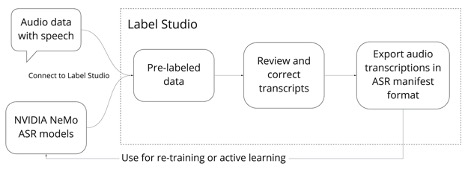
 NVIDIA recently released Clara Train 4.0, an application framework for medical imaging that includes pre-trained models, AI-Assisted Annotation, AutoML, and Federated Learning. In this 4.0 release, there are three new features to help get you started training quicker.
  This is the third installment in a series describing an end-to-end blueprint for predicting customer churn. In previous installments, we’ve discussed some of the challenges of machine learning systems that don’t appear until you get to production: in the first installment, we introduced our use case and described an accelerated data federation pipeline; in the …